March 11th, 2026
How to Automate Google Search Console API for AI-Powered SEO Insights
 WD
WDWarren Day
You're a SaaS founder. Monday morning rolls around and you log into Google Search Console, export last week's query report, paste it into a spreadsheet, then stare at the numbers hoping something useful jumps out. An hour later, you've found maybe one keyword opportunity. This manual routine eats 2-5 hours of your week. High-value time, gone.
Here's what kills me: while you're hunting for ranking drops or CTR weirdness, your competitors are shipping features. The google search console api exists specifically to fix this, but most founders either don't know about it or think automation means hiring a data engineer and burning through cloud credits.
The real payoff isn't just getting your data out faster. It's building a system that runs itself, turns raw numbers into actual insights, and sends you alerts when something matters. All while staying ready for the shift toward AI-driven search.
Off-the-shelf SEO platforms charge $200-500 monthly and still make you interpret everything manually. You're paying for dashboards, not decisions. Building your own system costs under $20/month in most cases, gives you full control, and lets you pipe search performance straight into your product analytics, CRM, or Slack. Wherever your team actually works.
This guide walks through the whole build. You'll see the two main approaches (hourly API pulls versus daily BigQuery exports) and when each one makes sense. Cost breakdowns included so your first GCP bill doesn't surprise you. The step-by-step covers authentication, pulling data, storage choices, and the part most guides ignore: using AI to generate real insights instead of just prettier charts.
We'll also cover maintenance and the common mistakes that turn weekend projects into abandoned code.
No fluff. No assumption you've got a data team sitting around. Just the tested path from manual spreadsheet hell to a system that actually runs on its own.
Why Manual GSC Checks Are a Strategic Drain (And the Automated Alternative)
You're a SaaS founder. Monday morning. You log into Google Search Console, export last week's query report, paste it into a spreadsheet, and stare at 3,000 rows wondering which numbers actually matter. By Thursday, you still haven't looked at it. By next Monday, you're doing it all over again.
This isn't laziness. It's what happens when you treat a strategic asset like a manual chore.
Every week you spend 2-5 hours on this ritual, you're not building product, closing deals, or refining your positioning. The time cost is obvious. The hidden cost? Opportunities you miss while buried in CSVs. A competitor quietly climbs from position #4 to #2 for your core keyword. Your best-performing page from last quarter drops to page two. High-intent queries start trending, but you won't notice until the moment has passed.
The stakes matter more than most founders realize. Position #1 on Google captures 39.8% of clicks, position #2 gets 18.7%, and position #3 drops to 10.2%. Moving up just one spot isn't a vanity metric. It's a measurable traffic lever that directly impacts pipeline. For a B2B SaaS company doing $50K MRR, a single keyword climbing from #3 to #2 can mean an extra 15-20 qualified visitors per month. Multiply that across your top 20 queries and you're looking at real revenue impact.
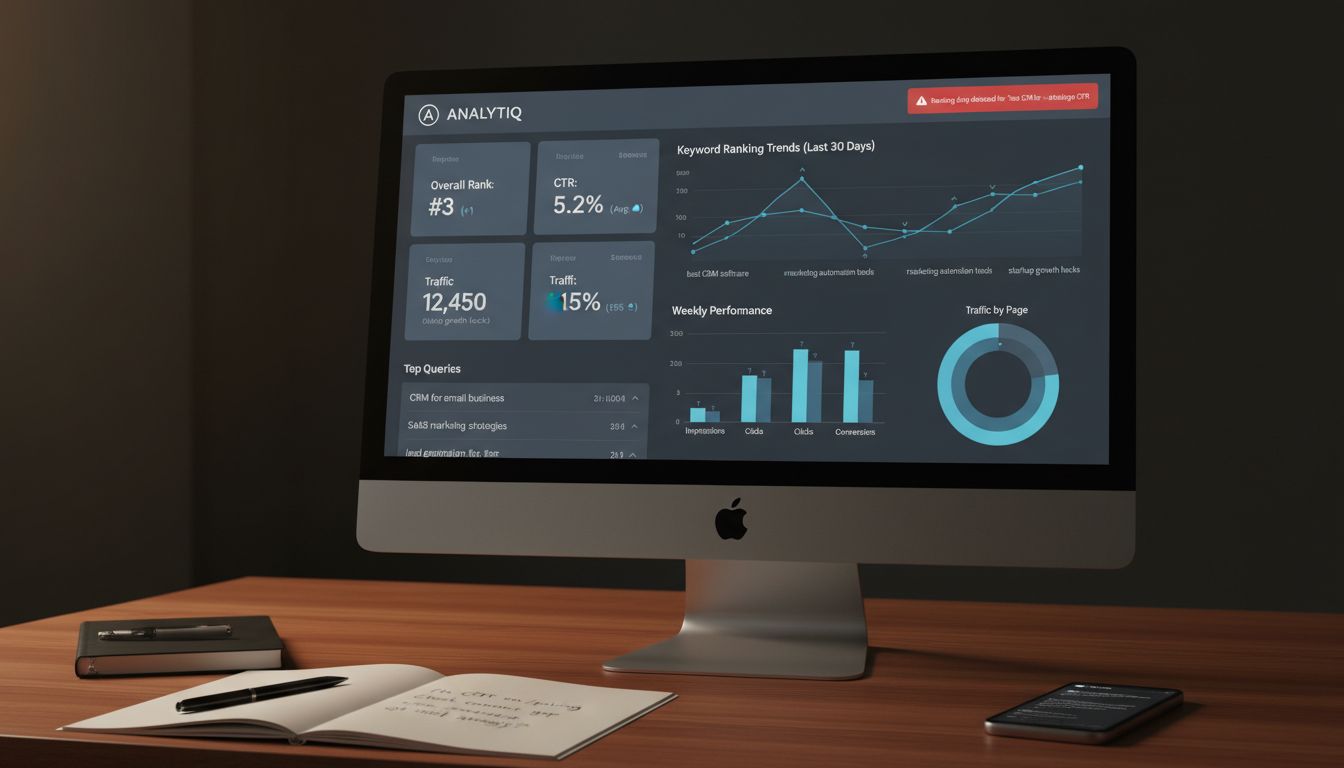
The automated alternative isn't some far-off vision requiring a data engineering team.
It's a system you build in a weekend that runs silently in the background. Flags ranking movements that actually matter. Summarizes weekly performance in plain language. Sends you a Slack alert when something breaks or spikes. That's it.
Two technical paths make this possible: direct API calls for near-real-time monitoring (now with hourly data granularity), or daily BigQuery exports for historical analysis and AI-powered insights. Neither requires a PhD in computer science. Both cost less than your monthly SaaS tool subscriptions. The search console api handles the hard parts if you let it, and the programmable search engine approach gives you full control over what data you track.
The question isn't whether you can afford to automate. It's whether you can afford not to.
Prerequisites, Costs, and Permissions: Answering the Big Questions
Before you spin up your first API call, let's address the questions that actually matter: what this costs, what access you need, and whether you're about to open a billing black hole.
Is the Google Search Console API free?
Yes. Google doesn't charge you to query the search console api itself. You can make up to 1,200 queries per minute per site without paying Google a cent for access.
The catch? The infrastructure you build on top isn't free. Cloud functions, storage, AI analysis, those add up.
What will you actually pay?
Here's the honest breakdown for a typical SaaS site pulling data daily and running AI insights:
- Cloud Run (for hourly data pulls and orchestration): ~$5–15/month
- BigQuery storage (if using daily bulk exports for 6–12 months of history): ~$10–30/month
- AI model calls (Gemini API for weekly insight summaries): ~$2–8/month
- Total: $17–53/month
Compare that to the 3–5 hours per week you're spending now. At a $150/hour opportunity cost, you're burning $1,800–3,000 monthly on manual analysis. The infrastructure pays for itself in the first week.
Authentication: Service accounts vs. OAuth
You have two paths here.
OAuth 2.0 works for user-facing apps where someone clicks "Allow" and grants permission through their Google account. Service Accounts are for server-to-server automation that runs on a schedule without human intervention. For your use case, pulling your own company's data automatically, Service Accounts are the obvious choice.
Here's the setup:
- Create a Google Cloud Project (free)
- Enable the google search console api in your project
- Create a Service Account and download the JSON key file
- In Google Search Console, add the service account email (looks like
your-service@project-id.iam.gserviceaccount.com) as a user with "Full" or "Restricted" permission - Store the JSON key securely, it's your authentication credential
The scope you need
Request only https://www.googleapis.com/auth/webmasters.readonly.
That's it. You're reading data, not modifying properties or submitting sitemaps. Least privilege isn't just security theater, it limits blast radius if credentials leak.
If you're building something user-facing (say, a dashboard for clients), you'll need to configure an OAuth consent screen. But for internal automation, skip the consent flow entirely and use the service account JSON directly in your code.
The real prerequisite: verified ownership
None of this works unless you've verified your site in Search Console.
If you're using DNS verification or a meta tag, make sure the verification method won't break when you redeploy your site. Domain-level verification (via DNS TXT record) is the most resilient option for production systems. It survives code deploys, server migrations, and theme updates without requiring you to re-verify every time you push to production.
Architecting Your System: Hourly API vs. Daily BigQuery Export
Two ways to pull data from the Google Search Console API. Pick wrong and you'll either overpay for infrastructure you don't need or miss critical signals when they matter most.
The fundamental trade-off:
| Factor | Hourly API | Daily BigQuery Export |
|---|---|---|
| Data Freshness | Up to 10 days of hourly granularity | Daily batches; first export takes up to 48 hours |
| Setup Complexity | Medium, requires orchestration, pagination logic, quota management | Low, one-time configuration, then automated |
| Query Flexibility | High, filter on the fly by dimension, date range, device | Medium, requires SQL knowledge; historical analysis is straightforward |
| Cost Profile | Compute + storage; costs scale with query frequency | Primarily storage (~$0.02/GB/month); minimal query costs for typical volumes |
| Ideal Use Case | Monitoring product launches, content updates, or real-time alerts | Historical trend analysis, reporting dashboards, AI training datasets |
The Hourly API Path
Since April 2025, the Search Analytics API returns hourly data for the past 10 days. Game-changer if you just launched a pricing page overhaul or published a cornerstone guide and need to know today whether it's working.
The limit: 1,200 queries per minute per site. Sounds generous until you try polling every hour for every dimension combination, page × query × device × country. You'll hit quota before lunch. Pull hourly data only for your top 50 landing pages or newly published URLs, not your entire site.
This path works when speed beats completeness. You're accepting operational overhead in exchange for knowing four hours after publish whether that blog post is gaining search traction or dying quietly.
The BigQuery Bulk Export Path
Opposite philosophy here. Configure once, walk away, let Google handle the pipeline.
You tell Search Console to write daily snapshots into a BigQuery dataset named searchconsole. First export takes up to 48 hours. You'll need to grant search-console-data-export@system.gserviceaccount.com the BigQuery Job User and BigQuery Data Editor roles, skip this step and nothing writes. Check permissions twice.
Once running, you get a complete daily record of every query, page, and impression. No orchestration code. Storage costs are trivial for most SaaS sites, a year of data for a 10,000-page site typically runs under $5/month. Querying is cheap unless you're scanning terabytes monthly.
This becomes your source of truth for historical analysis, cohort studies, and feeding AI models that need months of behavioral context to spot patterns humans miss.
Decision Framework
Simple logic: Need data within four hours? Use the API for specific, high-priority URLs. Analyzing trends over quarters or training models? Use BigQuery. Need both? BigQuery as your foundation, hourly API calls for your most critical 20-30 pages.
For most SaaS founders, BigQuery is the right starting point. It removes the burden of managing extraction jobs, gives you SQL-friendly data for dashboards and AI pipelines, scales without touching it. Add hourly API monitoring later when you have a specific, time-sensitive use case that justifies the complexity.
Start durable. Add speed where it pays.
The Step-by-Step Build: From Authentication to Automated Insights
Architecture decided. Now you actually build the thing.
This section walks through implementation, creating your service account, writing the code that pulls data, and the AI prompts that turn metrics into decisions. Not theory. The actual steps.
Setting Up Your Google Cloud Project & Service Account
Google Cloud Console is your first stop. If you've never touched GCP, the interface looks like a spaceship dashboard. Ignore 95% of it.
1. Create a new project. Click the project dropdown at the top, select "New Project." Name it something obvious like gsc-automation-prod. Write down the Project ID. You'll need it later.
2. Enable the Search Console API. Left nav, go to "APIs & Services" > "Library." Search for "Google Search Console API" and click "Enable." If you're using BigQuery exports, also enable the "BigQuery API." Straightforward.
3. Create a service account. Navigate to "IAM & Admin" > "Service Accounts" > "Create Service Account." Name it gsc-reader and give it a description. Next screen, assign these roles: BigQuery Data Editor (if using exports) and BigQuery Job User. You don't need Cloud Run Invoker yet unless you're deploying functions.
4. Generate and download the JSON key. Click into your new service account, go to the "Keys" tab, select "Add Key" > "Create new key" > "JSON." A file downloads. Store it securely, this is your authentication credential. Never commit it to a public repo. This mistake happens constantly.
5. Grant the service account access to your GSC property. Open Google Search Console, select your property, go to "Settings" > "Users and permissions," and click "Add user." Paste in the service account email (looks like gsc-reader@your-project.iam.gserviceaccount.com). Assign "Full" permission.
This step is easy to miss and will cause cryptic 403 errors later. Don't skip it.
If you're using BigQuery exports, you also need to grant the Search Console export service account (search-console-data-export@system.gserviceaccount.com) the roles BigQuery Job User and BigQuery Data Editor on your dataset. Without this, the export silently fails. No error message. Just nothing happens.
Pulling Data, Choose Your Path
Path A: Direct API Access
For hourly monitoring or custom dimensions, you'll call the Search Analytics API directly. Here's a minimal Python example using google-api-python-client:
from google.oauth2 import service_account
from googleapiclient.discovery import build

SCOPES = ['https://www.googleapis.com/auth/webmasters.readonly']
SERVICE_ACCOUNT_FILE = 'path/to/your-service-account.json'
SITE_URL = 'sc-domain:yoursite.com'

credentials = service_account.Credentials.from_service_account_file(
  SERVICE_ACCOUNT_FILE, scopes=SCOPES)
service = build('searchconsole', 'v1', credentials=credentials)

request = {
  'startDate': '2025-05-01',
  'endDate': '2025-05-07',
  'dimensions': ['query', 'page'],
  'rowLimit': 25000
}

response = service.searchanalytics().query(
  siteUrl=SITE_URL, body=request).execute()

for row in response.get('rows', []):
  print(row['keys'], row['clicks'], row['impressions'])
This pulls up to 25,000 rows per request. Need more? Increment startRow to paginate. The Search Analytics API supports hourly data for the past 10 days, set type to web and dataState to all to include fresh data.
Path B: BigQuery SQL
If you configured the bulk export, your data lands in a dataset named searchconsole. Query it like this:
SELECT
data_date,
query,
SUM(clicks) AS total_clicks,
SUM(impressions) AS total_impressions,
AVG(sum_position / impressions) AS avg_position
FROM `your-project.searchconsole.searchdata_site_impression`
WHERE data_date BETWEEN '2025-05-01' AND '2025-05-07'
GROUP BY data_date, query
ORDER BY total_clicks DESC
LIMIT 100;
Week-over-week changes? Use a self-join or window functions. BigQuery's nested fields (like search_type and is_anonymized_query) require UNNEST if you're grouping by them. Annoying but manageable.
Low-code alternative: Screaming Frog SEO Spider can connect to the search console api via its "API Access" menu. You authenticate once, select dimensions, and export to CSV. Slower than code but removes the need to write Python. Fine for one-off audits.
Orchestrating the Pipeline
You have data. Now you need to pull it on a schedule and route it somewhere useful.
Two common patterns:
Option 1: Cloud Scheduler + Cloud Functions (simpler). Create a Cloud Function (Python runtime) that runs your API or SQL query. Trigger it daily via Cloud Scheduler. Write results to BigQuery or send a summary to Slack via webhook. Total setup time: ~30 minutes.
Option 2: Cloud Composer (Airflow). Managing multiple data sources, dependencies, or retries? Composer gives you a full DAG orchestrator. You define tasks (fetch GSC, clean data, run AI analysis, send alert) and Airflow handles execution order and failure recovery.
Overkill for a single GSC pipeline, but future-proof if you plan to add Google Analytics, CRM exports, or backlink APIs.
A typical architecture looks like this:
GSC API or BigQuery Export
→ Cloud Function or Airflow DAG
→ BigQuery (storage)
→ AI prompt + LLM API
→ Slack/Email alert
Pro tip: Use the batch endpoint (/batch/) to combine up to 1,000 API calls into a single HTTP request. This reduces latency and keeps you under the 1,200 queries-per-minute-per-site limit when pulling data for hundreds of pages.
Injecting AI for Analysis (The Competitive Gap)
Most founders stop at dashboards. The real opportunity is turning data into narrative insights automatically.
Here's how to do it without vague "ask ChatGPT" advice.
Concrete AI prompts for GSC data:
| Use case | Prompt template |
|---|---|
| Rising queries with low CTR | "Act as an SEO strategist. Here are 50 queries with +30% impressions this month but <5% CTR for [Product Name]. Suggest 3 content angles to capture these informational searches." |
| Query intent classification | "Classify these 200 search queries into: Commercial, Informational, Navigational, Transactional. Return as JSON with query and intent." |
| Page performance summary | "Summarize the top 10 underperforming pages: URL, current avg position, clicks, and one-sentence hypothesis for why CTR is below expected for that position." |
| Competitive gap analysis | "Compare these query clusters to [Competitor URL]. Identify 5 high-volume queries they rank for that we don't appear in top 20." |
Feed these prompts your filtered BigQuery results (export as CSV or JSON). Use the OpenAI API, Anthropic Claude, or, if you want to stay inside GCP, Vertex AI with Gemini models.
For a more sophisticated setup, build a RAG (Retrieval-Augmented Generation) system using LlamaIndex on Google Cloud. Index your historical GSC data, then query it conversationally: "Which pages lost the most clicks after the March core update?" The LLM retrieves relevant rows and synthesizes an answer with citations.
The difference between a dashboard and a decision is context. AI adds that layer, if you give it structured inputs and specific tasks. Not magic. Just automation that actually saves you hours of staring at spreadsheets trying to spot patterns manually.
Day 2 Operations: Monitoring, Maintenance, and Evolving Your System
Your pipeline is live. Data flows. AI summaries hit Slack every morning.
Most founders stop here. Then three months later, the system's broken and nobody noticed for two weeks because alerts never got configured. Production readiness isn't about launch day, it's about surviving the first quota spike, schema change, or Google SERP reshuffle.
Monitoring and Alerting for Reliability
Three layers: infrastructure health, quota consumption, business metrics.
Start with Cloud Monitoring for pipeline health. Set alerts for Cloud Function execution errors, failed BigQuery writes, authentication failures. These are binary, they work or they don't. Configure error-rate thresholds (>5% failure rate over 10 minutes) to avoid getting woken up at 2am because of a transient blip.
Track API quota usage next. The Search Analytics API allows 1,200 queries per minute per site. Sounds like a lot until you're running hourly pulls across multiple dimensions and suddenly you're locked out for 15 minutes during peak analysis. Set up quota monitoring in Cloud Monitoring and alert at 80% consumption so you can throttle before hitting the ceiling.
The third layer is business metrics. Configure alerts for week-over-week drops exceeding 20% in clicks for your top-converting pages, sudden ranking losses (>5 positions) for target keywords, or unusual spikes in impressions without corresponding clicks. That last one often signals SERP feature changes or cannibalization issues you'd otherwise miss for weeks.
Cloud Monitoring read API calls cost $0.01 per 1,000 calls, with the first million free per billing account. Comprehensive alerting costs almost nothing.
Maintaining Data Integrity
BigQuery schema changes happen. Google occasionally adds fields to Search Console exports or adjusts how dimensions are labeled.
Implement a schema validation step in your ingestion pipeline that compares incoming column names and types against an expected schema. Log discrepancies instead of failing silently. You'll thank yourself when Google adds a new field and your pipeline doesn't just explode without explanation.
Run daily data quality checks: row count thresholds (alert if today's export is <50% of the 7-day average), null-rate monitoring for critical fields like clicks and impressions, and date-range validation to catch gaps. Store these checks as scheduled queries in BigQuery and route failures to your monitoring dashboard.
Service account key rotation is non-negotiable.
Set a calendar reminder every 90 days to generate new keys, update your Cloud Functions environment variables, and revoke old credentials. Automate this with Secret Manager and version-controlled deployment scripts if you're managing multiple properties. The alternative is getting locked out of your own system because a key expired and you forgot which Cloud Function was using it.
Optimizing Costs and Performance
Cache API responses for queries you run repeatedly. If you're pulling the same 30-day performance summary every hour, store results in BigQuery with a TTL column and refresh only when the time window changes. Obvious in hindsight, but most people hammer the API unnecessarily.
Use partitioned tables in BigQuery, partition by date on your data_date field. Queries that filter by date will scan only relevant partitions, cutting processing costs proportionally. A query across 90 days of data in a partitioned table can cost 1/10th of the same query on an unpartitioned table. This adds up fast.
Tune your AI usage. Use smaller, faster models (GPT-4o-mini) for classification tasks like tagging query intent or flagging anomalies. Reserve larger models (GPT-4o, Claude Opus) for synthesis and strategic recommendations. This can cut AI costs by 60% without sacrificing insight quality.
Here's the thing: nobody optimizes this stuff until they get a surprise cloud bill. Be proactive.
Updating for the SEO Landscape
Zero-click searches are rising. As AI Overviews and featured snippets dominate SERPs, clicks become a lagging indicator, you're optimizing for yesterday's search experience.
Shift your KPIs. Track impressions and average position as brand awareness proxies. Monitor query growth in high-intent clusters even when CTR declines. A query that surfaces your brand in an AI Overview might not drive a click, but it's still building mindshare.
Update your AI prompts quarterly. Ask your model to flag pages "suitable for AI Overview inclusion" or "vulnerable to answer-box displacement." As Google's SERP features evolve, your analysis framework has to evolve with them. Otherwise you'll spend six months optimizing for metrics that no longer correlate with revenue, wondering why traffic looks healthy but conversions tanked.
The reality is that most GSC setups ossify after launch. The data keeps flowing, but the insights get stale because nobody's maintaining the system or adapting to how search actually works now versus six months ago. Don't be that founder.
Common Pitfalls & How to Avoid Them
You've built your pipeline. Then it breaks. Here are the five mistakes that cost you hours of debugging, and the specific fixes that actually work.
1. Hitting the 50,000 Row Limit
The mistake: You request Search Analytics data with dimensions for page, query, device, and country all at once. The Search Console API returns exactly 50,000 rows, sorted by clicks, and silently drops everything else.
The fix: Reduce dimension combinations. Pull data in separate requests, one for page + query, another for device breakdowns. Or filter by date range: request one week at a time instead of 90 days. The API caps at 50,000 rows per day per search type, and there's no override. Design your queries to stay under that ceiling.
2. Ignoring Pagination with startRow
The mistake: You set rowLimit=25000 and assume you've fetched all available data. You haven't. The API returns the first 25,000 rows and stops.
The fix: Implement a loop. After each request, check if the response contains 25,000 rows. If it does, increment startRow by 25,000 and fetch again. Repeat until the API returns fewer rows than your limit.
This is the only way to retrieve datasets larger than one page. Most developers miss this on first implementation and wonder why their totals don't add up.
3. BigQuery Export Never Appears
The mistake: You configured the export in Search Console, waited 48 hours, and the dataset is still empty. The service account doesn't have write permissions.
The fix: Navigate to your BigQuery dataset's IAM settings. Verify that search-console-data-export@system.gserviceaccount.com has both BigQuery Job User and BigQuery Data Editor roles. Without both, the export service can't create tables or insert rows.
4. Quota Throttling and 429 Errors
The mistake: Your Cloud Function hammers the Search Console API every few seconds. Google returns HTTP 429, and you're locked out for 15 minutes.
The fix: Respect the 1,200 queries per minute per site limit. Add exponential backoff to your retry logic, wait 2 seconds, then 4, then 8. Space out requests when fetching historical data. If you're batching, keep total calls under 1,000 per batch and monitor your quota dashboard.
Getting throttled once is a learning experience. Getting throttled during a client demo is a career moment.
5. Inefficient BigQuery Schema Design
The mistake: You store each dimension (query, page, device) as a separate column, creating massive, slow tables.
The fix: Use nested and repeated fields. Store dimensions as a REPEATED RECORD and metrics as top-level columns. This mirrors how the native BigQuery export works and dramatically speeds up analytical queries without inflating storage costs.
Look, schema design feels academic until you're running a query that scans 2TB instead of 200GB because you structured everything flat. The cost difference is real.
Conclusion: From Data Overload to Strategic Leverage

You started this guide drowning in manual GSC exports. You're ending it with a blueprint for a self-maintaining system that surfaces insights while you sleep.
The transformation isn't about collecting more data. It's about commanding it. You've learned the architectural choice: hourly API pulls for real-time alerts when a page tanks, BigQuery exports for historical pattern analysis. You've seen the authentication flow, the pagination logic, the alert thresholds. But the unlock isn't the pipeline. It's the AI layer you bolt on top.
Without AI analysis, you've automated a spreadsheet. With it, you've built a system that tells you why traffic dropped, which queries to prioritize, and what content needs refreshing.
That narrative compounds as your historical data grows and your prompts sharpen. Six months in, your system will spot patterns you'd never catch manually.
Here's your next step: pick one method this week. If you need speed, start with the search console api and a Cloud Function. If you want depth, configure the BigQuery export. Set up one alert, a Slack ping when clicks drop 20% week-over-week. Write one AI prompt that summarizes your top underperforming queries.
You've stopped being a data janitor. Start being a growth operator.
Conclusion: From Data Overload to Strategic Leverage
You started this guide drowning in manual GSC exports. You're ending it with a blueprint for a self-maintaining system that surfaces insights while you sleep.
The transformation isn't about collecting more data. It's about commanding it. You've learned the architectural choice: hourly API pulls for real-time alerts when a page tanks, BigQuery exports for historical pattern analysis. You've seen the authentication flow, the pagination logic, the alert thresholds. But the unlock isn't the pipeline itself.
It's the AI layer you bolt on top. Without AI analysis, you've automated a spreadsheet. With it, you've built a system that tells you why traffic dropped, which queries to prioritize, and what content needs refreshing before your competitors even notice the shift.
The landscape keeps moving. AI Overviews are rewriting CTR curves, zero-click searches are eating impressions, and yesterday's "good" rankings might be worthless tomorrow. When you control the pipeline, though, you control the response. Update your anomaly thresholds. Rewrite your AI prompts. Add new metrics without waiting for a SaaS vendor to ship a feature request you submitted eight months ago.
Here's your next step: pick one method this week. If you need speed, start with the search console api and a Cloud Function. If you want depth, configure the BigQuery export. Set up one alert. A Slack ping when clicks drop 20% week-over-week. Write one AI prompt that summarizes your top underperforming queries.
That narrative compounds as your historical data grows and your prompts sharpen. Six months in, your system will spot patterns you'd never catch manually.
You've stopped being a data janitor. Start being a growth operator.
Frequently Asked Questions
Is Google Search Console API free?
Yes, the search console api itself is completely free within Google's quotas: 1,200 queries per minute per site and 30 million queries per day per project [Source: developers.google.com].
Where you actually spend money is the infrastructure around it. BigQuery storage runs about $0.02/GB/month. Cloud Run charges for compute time. If you're running AI analysis, OpenAI or Gemini API calls add up [Source: eesel.ai]. For most early-stage SaaS sites, total infrastructure costs sit between $5-20/month.
Is Google Search Console free?
Completely free. The web interface at search.google.com/search-console costs nothing and gives you basic search performance monitoring.
This article is about using the API to automate the boring parts. Instead of manually exporting CSVs every week, you pull data programmatically and run deeper analysis than the web UI allows. Saves hours.
Can I use Google search API for free?
You're dealing with two different APIs here. The Google Search Console API (what this guide covers) is free for accessing your own site's performance data within generous quotas. The programmable search engine (formerly Custom Search JSON API) is a separate service for embedding a search box on your website, and it can cost money [Source: developers.google.com].
For SEO insights and automating search performance monitoring, you want the search console api.
Does Google have an API for search?
Google provides several search-related APIs depending on what you're trying to do. For accessing your website's organic search performance data (clicks, impressions, CTR, position), it's the Google Search Console API covered in this guide. For embedding site search functionality, there's the Custom Search JSON API. For enterprise Workspace data, there's the Google Cloud Search API.
Each one solves a different problem.
What happens if I hit the API limits?
You'll run into one of two walls. First, there's the hard 50,000-row maximum per query per day. The API only returns the top 50k rows ordered by clicks. Second, the rate limits of 1,200 queries per minute per site [Source: developers.google.com].
Hit quota limits and you get a 429 error. You'll need to wait 15 minutes before retrying. The solution is strategic filtering: query by smaller date ranges, specific high-impression queries, or device type. Implement exponential backoff retry logic in your code so it doesn't just hammer the API repeatedly.
Can I use the API to submit URLs for indexing?
Absolutely. It's one of the most practical automation use cases.
The URL Inspection API (2,000 queries per day per site) lets you programmatically submit individual URLs for indexing [Source: developers.google.com]. Trigger a Cloud Function right after publishing a new blog post or product page to request indexing. Cuts discovery lag from days to hours.